
Table of Contents
The Surface Pro 4 has long been recognized as a powerful and versatile 2-in-1 device. However, one issue that has affected a number of users is the screen vibration problem, often described as screen flickering or “screen shaking.” This issue can range from mildly distracting to completely disruptive, interfering with productivity and daily use. Understanding what causes the problem and how it can be resolved is essential for anyone still relying on this device.
TL;DR: The Surface Pro 4 screen vibration issue is typically caused by hardware failure linked to heat exposure and display controller degradation. It often appears after extended use and manifests as flickering, shaking, or jittering of the display. While some temporary fixes exist, long-term solutions usually require screen replacement or device retirement. Microsoft previously acknowledged the issue and offered limited replacement support for affected units.
What Is the Surface Pro 4 Screen Vibration Problem?
The screen vibration problem refers to a visible flickering, jittering, or shaking of the display. Users often describe it as the screen rapidly vibrating horizontally or vertically, sometimes accompanied by ghosting effects or brightness changes.
This issue became so widespread that it earned an informal nickname among users: “Flickergate.” Online forums and support communities contain thousands of reports detailing similar symptoms.
The vibration typically:
- Begins after the device has been running for some time
- Worsens when the device becomes warm
- Starts intermittently before becoming constant
- Temporarily improves when the device cools down
For many users, the problem develops after several months or years of normal use.
How the Issue Presents Itself
The symptoms of screen vibration can vary slightly depending on device condition and usage patterns. Common manifestations include:
- Rapid screen flickering, especially noticeable on light backgrounds
- Horizontal shaking across the entire display
- Blurry or double images caused by unstable refresh behavior
- Temporary disappearance of flickering after sleep or restart
- Increased severity when device heats up

In advanced cases, the display may become nearly unusable for professional work such as document editing, graphic design, or video viewing.
Root Causes of the Problem
The Surface Pro 4 screen vibration issue is primarily linked to hardware degradation, rather than simple software glitches.
1. Display Controller Failure
A significant cause appears to be failure within the display controller embedded in the device’s hardware. Over time, stress and component aging can cause signal instability between the graphics processor and the LCD panel.
2. Thermal Stress and Heat
Heat plays a major role. The Surface Pro 4’s thin design, while elegant, limits thermal dissipation. Prolonged exposure to high temperatures can accelerate:
- Solder joint fatigue
- Expansion and contraction of internal components
- Weakening of display circuitry
Many users report that placing the device in a freezer briefly reduces the flickering temporarily — a clear indication that temperature affects the behavior.
3. Hardware Design Limitations
The compact architecture of the Surface Pro 4 integrates the display and processing components tightly together. While this enables the slim form factor, it also increases vulnerability to thermal build-up and long-term stress.
Once degradation reaches a certain point, the issue typically becomes permanent.
Is It a Software Problem?
In most documented cases, the answer is no. Users frequently attempt fixes such as:
- Updating Windows
- Reinstalling display drivers
- Resetting the device
- Adjusting refresh rate settings
- Performing a full factory reset
While these steps may temporarily change screen behavior, they rarely provide a lasting solution. The issue persists even after operating system reinstalls, which strongly suggests a hardware-level fault.
Diagnostic Clues
If you suspect your device is developing the vibration problem, look for these indicators:
- The flicker appears only after 20–30 minutes of use
- The back of the device feels noticeably warm
- External monitor output is normal (indicating GPU is functioning)
- Restarting temporarily eliminates the issue
A particularly telling diagnostic method is connecting the Surface Pro 4 to an external monitor. If the external display remains stable while the internal screen flickers, the GPU is likely not the problem — reinforcing the display hardware theory.
Microsoft’s Response
Microsoft acknowledged the issue after widespread reports emerged. The company confirmed that some Surface Pro 4 units exhibited screen flickering due to hardware failure.
As a result, Microsoft launched a replacement program for eligible devices within a specific timeframe. Users whose devices met certain criteria were offered a refurbished replacement unit at no additional cost.
However:
- The program had time limitations
- Not all devices qualified
- Out-of-warranty devices were often ineligible
As of recent years, this replacement program has largely expired, meaning most affected units must now be addressed independently.
Temporary Mitigation Strategies
Although no permanent software fix exists, some users have found temporary relief with the following strategies:
1. Cooling the Device
- Shutting down and allowing it to cool
- Using external fans
- Reducing heavy processing tasks
2. Lowering Screen Brightness
Reducing brightness can sometimes lessen visible flickering.
3. Disabling Hyper-Threading (Advanced)
Some technically inclined users report marginal improvements by adjusting BIOS-level CPU settings, though this does not resolve the underlying hardware degradation.
4. Using an External Monitor Permanently
For stationary setups, the device can function as a desktop computer when connected to a stable external display.
It is important to understand that these measures typically delay inconvenience rather than eliminate the defect.
Repair and Replacement Options
Once the problem becomes persistent, the realistic solutions are limited:
1. Screen Replacement
Replacing the screen assembly may resolve the issue, but:
- The Surface Pro 4 is difficult to repair
- The screen is glued into the chassis
- Professional repair costs can be high
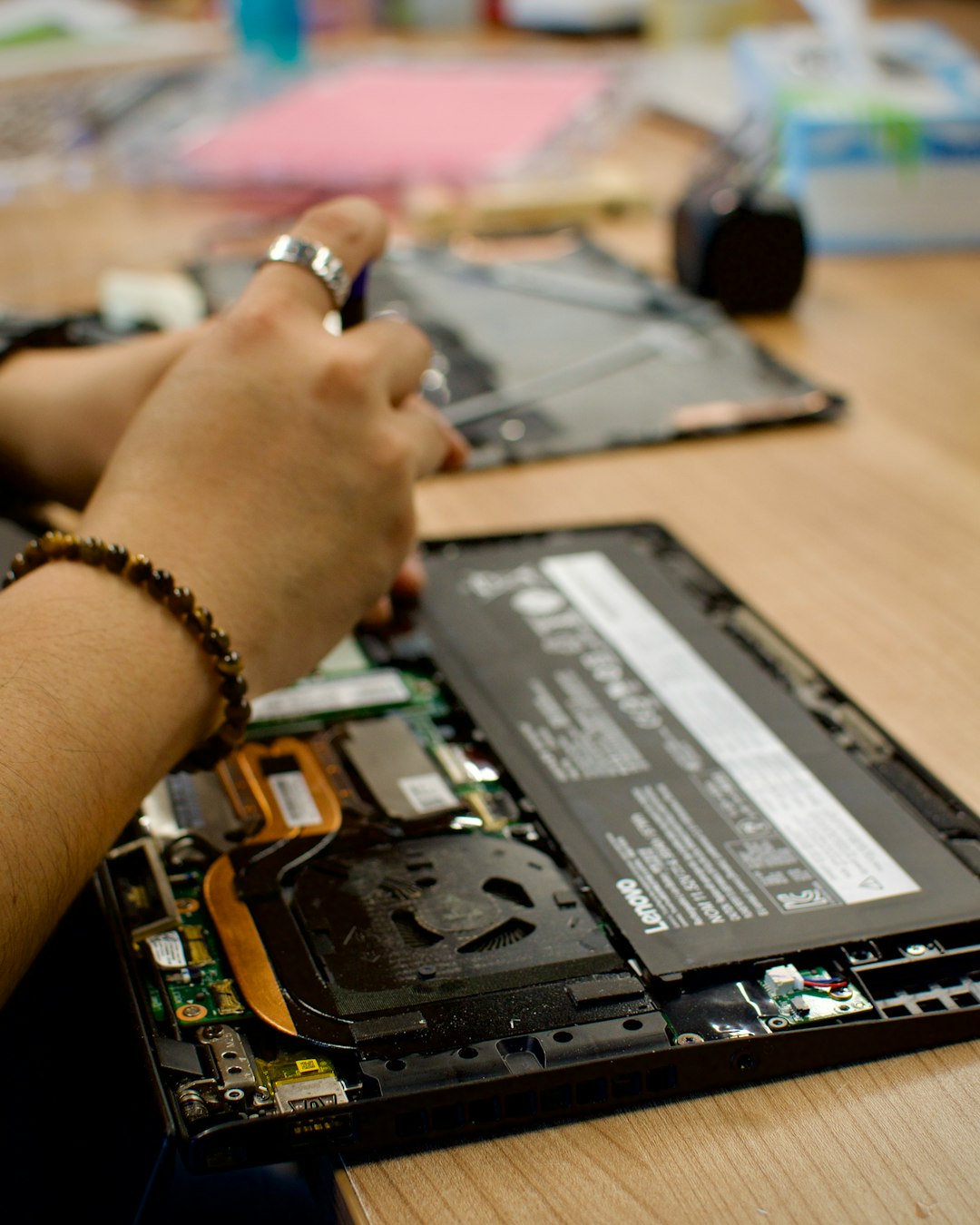
Additionally, because the issue may involve deeper display circuitry, replacing only the panel does not always guarantee success.
2. Device Replacement
For many users, upgrading to a newer Surface model or alternative device proves more cost-effective. Later Surface generations were redesigned with improved thermal management systems, reducing the likelihood of similar problems.
3. Trade-In or Recycling
If repair is not economical, responsible recycling or trade-in programs can help offset the cost of a new device.
Lessons in Hardware Longevity
The Surface Pro 4 screen vibration problem illustrates a broader reality in modern computing: ultra-thin devices often face thermal challenges. Compact engineering can improve portability but may compromise long-term durability if heat is not sufficiently managed.
Key takeaways include:
- Heat is a major factor in electronic degradation
- Thin form factors require advanced cooling design
- Integrated displays are more complex to repair
- Long-term reliability testing is crucial
Consumers should consider expected lifespan alongside performance specifications when choosing devices.
Is It Still Worth Using a Surface Pro 4?
The answer depends on the condition of your specific device. Units unaffected by vibration can still perform well for:
- Office productivity
- Web browsing
- Media consumption
- Light creative work
However, if screen vibration has already begun, the issue often progresses. For mission-critical environments, continuing reliance on a problematic unit is not advisable.
Final Assessment
The Surface Pro 4 screen vibration problem is not merely a minor glitch — it is a hardware-level failure pattern that has impacted a measurable portion of devices. While temporary workarounds exist, they do not address the root cause. The issue appears strongly linked to thermal stress and display controller degradation over time.
For affected users, understanding the technical nature of the failure helps set realistic expectations. In many cases, replacement — rather than repair — is the most practical path forward. Although the Surface Pro 4 remains an important product in Microsoft’s hardware history, the screen vibration issue stands as a cautionary example of the challenges associated with balancing performance, portability, and durability in modern device design.