
Table of Contents
Encountering download issues on creative platforms can be frustrating, especially when deadlines loom and assets are essential. Adobe Stock, a powerful source for royalty-free images, videos, and templates, occasionally presents users with an “Error Occurred During Download” message. This guide explores the root causes of this issue and provides detailed troubleshooting steps to help users resume their downloads quickly and effectively.
TLDR:
If you’re seeing an “Error Occurred During Download” message on Adobe Stock, the issue often stems from browser cache problems, outdated software, or download restrictions. Clearing your cache, using a different browser, and verifying account status can typically resolve the problem. If not, deeper solutions like updating Creative Cloud or reaching out to Adobe support might be needed. Read on for a detailed step-by-step guide.
Common Causes of the Error
Before diving into solutions, it’s important to understand what causes the “Error Occurred During Download” issue in Adobe Stock. Below are the most frequent culprits:
- Browser-related issues: Cache corruption or incompatible extensions.
- Creative Cloud sync errors: Adobe Creative Cloud may fail to sync or validate licenses properly.
- Outdated software: Old versions of browsers or the Creative Cloud Desktop App.
- Asset license problems: The license might not have been applied correctly.
- Firewall or antivirus restrictions: Security software interfering with downloads.
- Account issues: An expired subscription or pending payment can prevent downloads.
Step-by-Step Fixes for the Adobe Stock Download Error
1. Refresh and Re-login
Sometimes, the simplest solution is the most effective. Start by refreshing the page and logging out of your Adobe account. Then, log in again and attempt the download.
2. Clear Browser Cache and Cookies
Browsers can accumulate outdated cache files and cookies that interfere with site functionality. To resolve this:
- Open your browser settings.
- Navigate to Privacy and Security.
- Clear cache and cookies for All Time.
- Restart your browser and try downloading again.
3. Try a Different Browser
If clearing cache doesn’t help, try downloading the asset using a different browser. Adobe Stock generally works best on Chrome, Firefox, and Edge. Avoid using less common browsers, as they may lack compatibility with Adobe services.
4. Update Your Software
An outdated version of Adobe Creative Cloud or even the browser itself can trigger the download error. Make sure your software is up to date:
- Open the Creative Cloud Desktop App.
- Go to Help > Check for Updates.
- Update any outdated apps.
- Restart your computer and try again.
5. Verify Asset License Status
Ensure that the asset has been successfully licensed. To check:
- Go to your Adobe Stock account settings.
- Click on License History.
- If the item isn’t listed, click the License button again.
Sometimes, the licensing process fails on the backend and needs to be redone.
6. Disable Browser Extensions
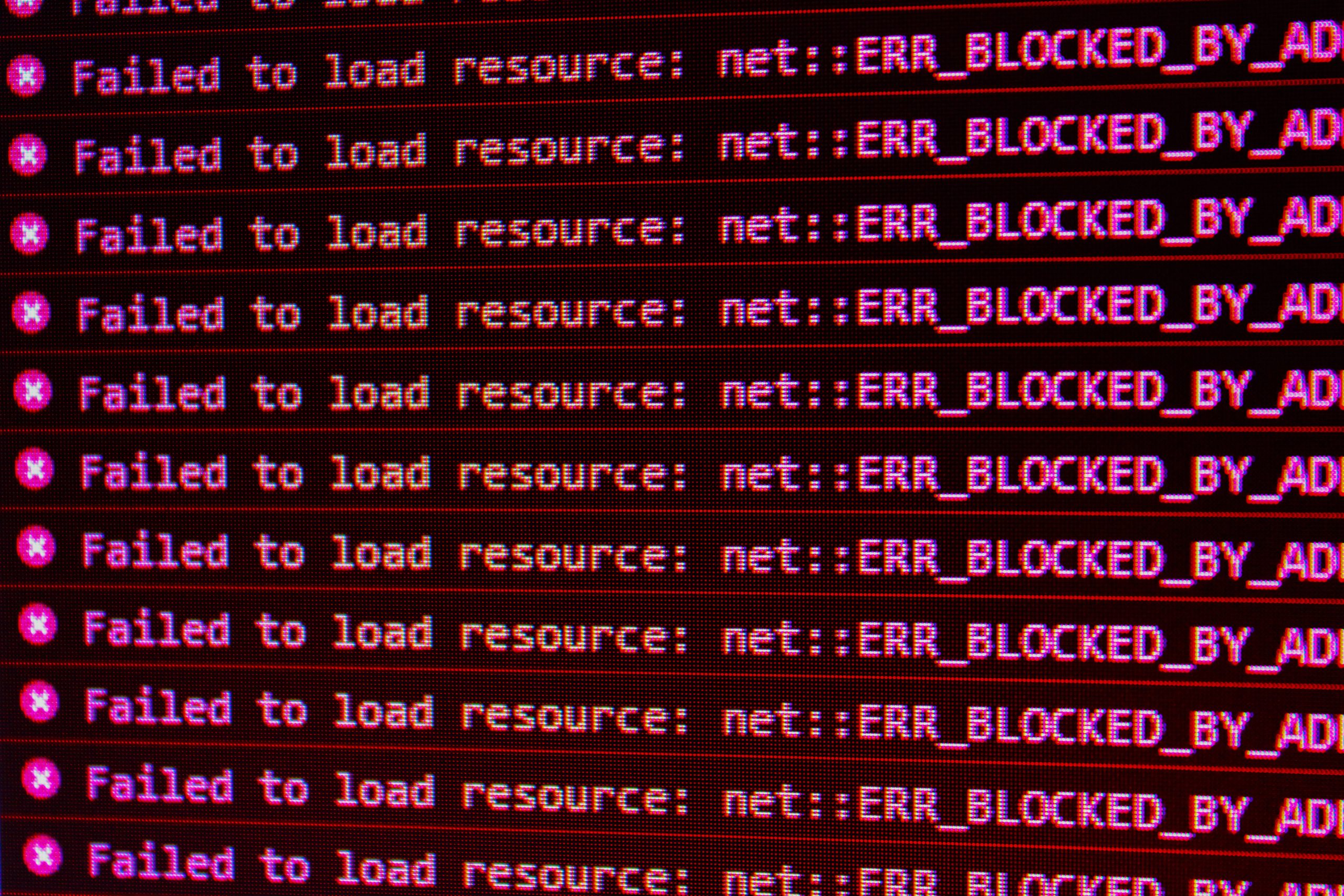
Some browser extensions (especially ad-blockers and download managers) can block Adobe Stock’s scripts. Disable extensions temporarily to see if it resolves your issue.
7. Turn Off VPN or Firewall Software
Security software might view Adobe Stock downloads as unauthorized. Temporarily disable:
- VPNs
- Firewalls
- Antivirus web shields
After disabling, try downloading the file again. If it works, add Adobe Stock and Adobe Creative Cloud to your software’s whitelist.
8. Download Through Creative Cloud Desktop
For some asset types (like templates or graphics used in Adobe Illustrator or Photoshop), the download must be handled through the Creative Cloud app:
- Click on the Download button on Adobe Stock.
- It may trigger the Creative Cloud Desktop App.
- Open the app and complete the download from the asset section.

9. Contact Adobe Stock Support
If none of these steps resolve the issue, the problem may lie within your Adobe account or a backend server issue. In that case:
- Go to Adobe Support.
- Select Stock and Marketplace as your product.
- Use chat or phone support to reach an agent.
Preventing Adobe Stock Download Errors in the Future
Once the issue is fixed, taking a few preventive steps can avoid its recurrence:
- Regularly update your Adobe apps and browsers.
- Clear cache monthly to keep your browser clean.
- Whitelist Adobe domains in your security software settings.
- Avoid using VPNs when accessing Adobe Stock for smoother operation.
Alternative Solutions and Workarounds
If you’re in a pinch and the usual downloading still doesn’t work, consider these alternatives:
- Use another account: Try logging into Adobe Stock with a different Adobe ID.
- Download on another device: The issue may be local to your machine.
- Screenshot for emergency use: As a last resort, capture a screenshot in low-res to use temporarily, then replace it later with the licensed high-res version.
Conclusion
The dreaded “Error Occurred During Download” in Adobe Stock is troublesome but usually fixable with a combination of browser optimization, account verification, and software updates. Creative professionals can ensure a smoother workflow by performing regular maintenance on their tools and being aware of how browser and system settings interact with Adobe platforms.
Frequently Asked Questions
-
Q: What causes the “Error Occurred During Download” in Adobe Stock?
A: This error is commonly caused by browser cache issues, software incompatibility, poor internet connection, or an improperly applied asset license. -
Q: Can I use Adobe Stock assets without Creative Cloud?
A: Yes, you can download and use assets without Creative Cloud depending on asset type. However, design templates may require compatible Adobe software. -
Q: Are browser extensions a common culprit?
A: Absolutely. Extensions, especially ad-blockers or script-blockers, can interfere with the scripts Adobe Stock uses to process downloads. -
Q: Why does the download pause or stop randomly?
A: An unstable internet connection, VPN restrictions, or antivirus interference can interrupt the download process. -
Q: How do I know if an asset has been licensed successfully?
A: Navigate to your Adobe Stock License History. If the asset appears there, it has been successfully licensed.