

Table of Contents
Android phones are designed to manage memory and temporary files automatically, but over time, cached data can become excessive, outdated, or simply unnecessary. When that happens, your smartphone may feel slower, apps may take longer to open, storage may run low, and some apps may behave unpredictably. Clearing cache is not a magic fix for every performance problem, but it is a safe and practical maintenance step when used correctly.
TLDR: Clearing Android cache can free storage, fix app glitches, and help your phone feel more responsive. Start by clearing the cache of individual apps that are slow or using too much storage, rather than deleting everything blindly. Avoid clearing important app data unless you understand that it may remove logins, settings, or saved files. For lasting performance, combine cache cleanup with software updates, uninstalling unused apps, and checking storage regularly.
What Android Cache Actually Is
Cache is temporary data stored by Android and individual apps to make repeated actions faster. For example, a browser may save images from websites you visit often, a music app may store album artwork, and a social media app may keep thumbnails, previews, and short-term media files. This allows the app to load familiar content more quickly instead of downloading or generating it again every time.
In principle, cache is helpful. It reduces loading times, saves mobile data, and improves the overall user experience. The problem begins when cached files grow too large, become corrupted, or remain on the phone long after they are useful. A single app can sometimes hold several gigabytes of cache, especially if it handles videos, images, maps, or messaging attachments.
It is important to understand the difference between cache and app data. Cache is temporary and usually safe to delete. App data is more permanent and may include account information, settings, messages, downloaded files, game progress, or offline content. Clearing cache is usually low risk; clearing data can reset an app to its original state.

When You Should Clear Android Cache
You do not need to clear cache every day. Android is built to handle temporary files intelligently, and constantly deleting cache may actually make apps slower for a short time because they need to rebuild those files. However, there are several situations where clearing cache makes sense.
- Your phone is running low on storage: Cached files can occupy a surprising amount of space, especially on phones with 64 GB or less storage.
- An app is crashing or freezing: Corrupted cache may cause repeated errors or failed loading screens.
- An app displays outdated information: Clearing cache may force the app to fetch fresh content.
- Your phone feels sluggish: Removing unnecessary temporary files can help, particularly when storage is nearly full.
- You are troubleshooting: Cache clearing is a reasonable first step before reinstalling an app or resetting the phone.
As a general rule, if your Android phone has plenty of available storage and apps are running normally, there is no urgent need to clear cache. If storage is below 10% free, performance can suffer because Android needs space for updates, background processes, downloads, and temporary system operations.
How to Clear Cache for a Single Android App
The safest and most effective method is to clear cache for specific apps that are causing problems or taking up excessive storage. The exact menu names may vary depending on your phone manufacturer and Android version, but the process is generally similar.
- Open Settings on your Android phone.
- Tap Apps, Applications, or Apps and notifications.
- Select the app you want to manage.
- Tap Storage or Storage and cache.
- Tap Clear cache.
This action removes temporary files for that app only. It should not sign you out, delete your account, remove personal documents, or erase saved preferences in most cases. After clearing cache, open the app again. It may load a little more slowly the first time because it needs to recreate some temporary files.
If an app continues to malfunction after clearing cache, you may consider tapping Clear storage or Clear data, but proceed carefully. This can remove saved settings, offline files, login sessions, and other app-specific information. For banking apps, messaging apps, authenticator apps, and work apps, make sure you know your login details and backup options before clearing data.
How to Find Apps Using the Most Storage
Before deleting cache randomly, it is better to identify which apps are consuming the most space. On many Android phones, you can do this through the storage settings.
- Open Settings.
- Tap Storage.
- Choose Apps or review the storage categories shown.
- Sort apps by size, if your device offers that option.
- Review large apps and check whether their cache is unusually high.
Apps that stream or handle media are often the biggest cache users. This includes video platforms, social networks, browsers, podcast apps, map apps, shopping apps, and messaging services. A navigation app may store offline map tiles, while a social media app may keep large quantities of image and video previews. Clearing cache from these apps can recover space quickly.

How to Clear Browser Cache on Android
Web browsers are among the most common sources of cached files. Clearing browser cache can fix page loading problems, remove outdated website content, and free storage. However, depending on the options you choose, it may also remove cookies or browsing history.
For Google Chrome, use the following steps:
- Open Chrome.
- Tap the three dot menu in the top-right corner.
- Tap Settings.
- Select Privacy and security.
- Tap Clear browsing data.
- Choose a time range, such as Last 24 hours or All time.
- Select Cached images and files.
- Tap Clear data.
If you do not want to be signed out of websites, be careful with options such as Cookies and site data. Clearing only cached images and files is usually enough for performance and display issues.
Other browsers, such as Samsung Internet, Firefox, Opera, and Brave, provide similar options under privacy, history, or browsing data settings. The labels may differ, but the principle is the same: clear cached files without deleting more personal data than necessary.
Can You Clear All Android Cache at Once?
Older versions of Android offered a simple option to clear all cached data at once. On many modern Android devices, this feature has been removed or limited. Google now emphasizes app-by-app cache management because it is more precise and less disruptive.
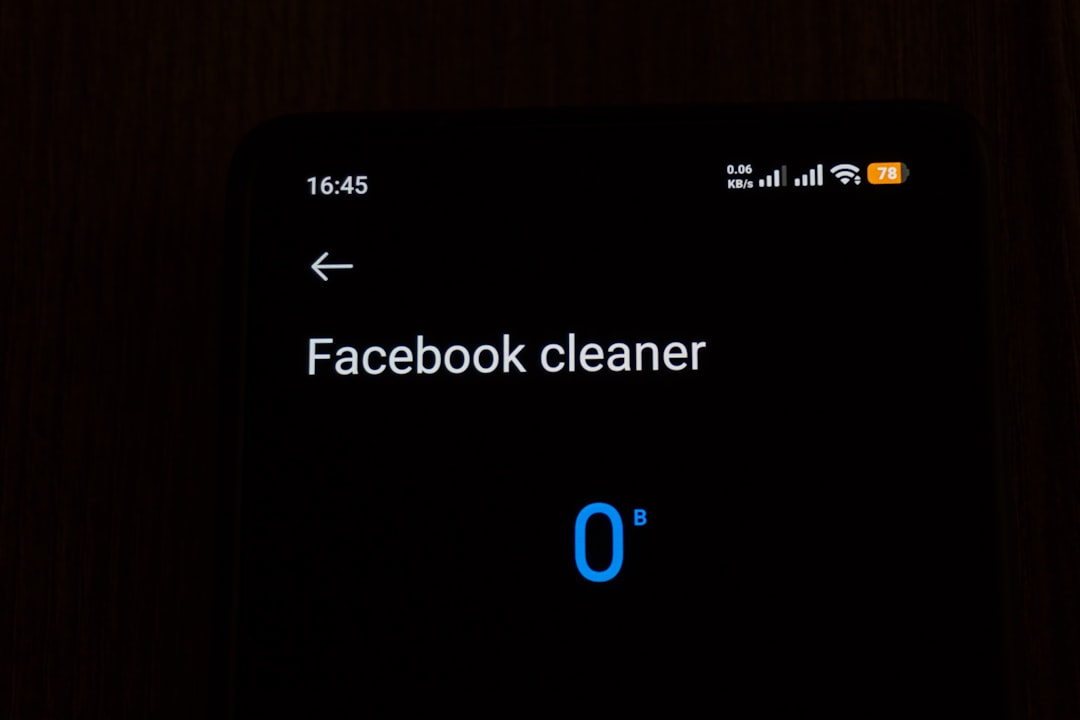
Some manufacturers still include built-in maintenance tools. Samsung phones may offer Device care, Xiaomi phones may include a Cleaner tool, and other brands may provide storage optimization features. These tools can be useful, but you should review what they plan to delete before confirming. Avoid any option that removes personal files, downloads, or app data unless you are certain you no longer need them.
Be cautious with third-party “phone cleaner” apps. Some are reputable, but many exaggerate problems, display intrusive ads, request unnecessary permissions, or run constantly in the background. Ironically, a bad cleaner app can slow your phone down more than the cache it claims to remove. Android already includes most of the maintenance features ordinary users need.
Clearing Cache Is Not the Same as Increasing RAM
Many users confuse storage cleanup with memory management. Cache usually refers to files stored on your phone’s internal storage. RAM, or random access memory, is temporary working memory used by active apps and system processes. Clearing cached storage may help if your phone is nearly full, but it does not directly add more RAM.
Android manages RAM automatically by pausing or closing background processes when needed. Constantly force-closing apps or using aggressive memory boosters is rarely helpful. In some cases, it makes the phone use more battery because apps must fully restart instead of resuming efficiently.
If your phone feels slow because it has limited RAM, better solutions include uninstalling unnecessary apps, reducing background activity, using lighter versions of apps, disabling heavy widgets, and restarting the device occasionally.
Other Reliable Ways to Speed Up Your Android Phone
Clearing cache is only one part of proper smartphone maintenance. For a noticeable and lasting improvement, combine it with other sensible steps.
- Restart your phone: A restart clears temporary system activity and can resolve minor performance issues.
- Update Android: System updates often include performance improvements, security patches, and bug fixes.
- Update your apps: Developers regularly fix crashes, memory leaks, and inefficient behavior.
- Remove unused apps: Apps you never open may still use storage, send notifications, or run background tasks.
- Delete unnecessary downloads: Old PDFs, videos, installation files, and duplicate photos can consume significant space.
- Move media to cloud storage or an SD card: If your device supports expandable storage, use it for photos, videos, and music.
- Limit background activity: Some apps allow you to restrict battery and background usage in Android settings.
- Reduce animations: Advanced users can adjust animation scale in Developer Options to make the interface feel faster.
How Often Should You Clear Cache?
For most users, clearing cache once every few weeks or months is enough, and only when there is a reason. If a particular app frequently becomes bloated or unstable, clearing that app’s cache more often may help. If your storage is consistently full, however, repeated cache clearing is only a temporary patch. You will need to remove large files, uninstall apps, or upgrade to a device with more storage.
A practical habit is to review storage once a month. Look for unusually large apps, old downloads, duplicate media, and offline content you no longer need. This approach is more effective than relying on emergency cleanup when your phone is already slow or unable to install updates.
What Not to Do When Trying to Speed Up Android
Some common speed-up advice is outdated or risky. Avoid deleting folders manually unless you know exactly what they contain. Do not install multiple cleaner, antivirus, booster, and battery saver apps that all run in the background. Do not clear app data for important services unless you have backups and login credentials. Most importantly, do not perform a factory reset as a first step. A reset can help in severe cases, but it should be a last resort after backing up your data.
You should also be skeptical of apps or websites that promise dramatic speed improvements with one tap. Real performance gains usually come from freeing storage, removing problematic apps, updating software, and reducing unnecessary background activity. Cache clearing helps, but it works best as part of a careful maintenance routine.
Final Thoughts
Clearing Android cache is a safe, useful way to recover storage and fix certain app problems, especially when your phone is slow, nearly full, or behaving inconsistently. The best approach is targeted: identify large or troublesome apps, clear their cache, and then check whether performance improves. Avoid deleting app data unless you understand the consequences.
For a faster and more reliable smartphone, treat cache cleanup as one tool among several. Keep your system and apps updated, remove what you no longer use, maintain enough free storage, and restart your phone when performance begins to decline. With regular, careful maintenance, most Android phones can remain responsive and dependable for years.