

Table of Contents
A computer monitor that suddenly goes black can feel alarming, especially when it happens in the middle of work, gaming, or an online transaction. While a dark screen often points to a simple technical glitch, it can occasionally signal hardware failure or even a deceptive tech support scam. Understanding the possible causes and knowing how to respond can save time, money, and frustration.
TLDR: A monitor screen that goes black is usually caused by loose cables, power issues, outdated drivers, or sleep settings. In some cases, it may signal hardware failure like a faulty graphics card or dying monitor. Rarely, a black screen combined with suspicious pop-ups or phone numbers could indicate a scam. Basic troubleshooting can solve most problems, but professional help may be needed for hardware damage.
1. Loose or Damaged Cables
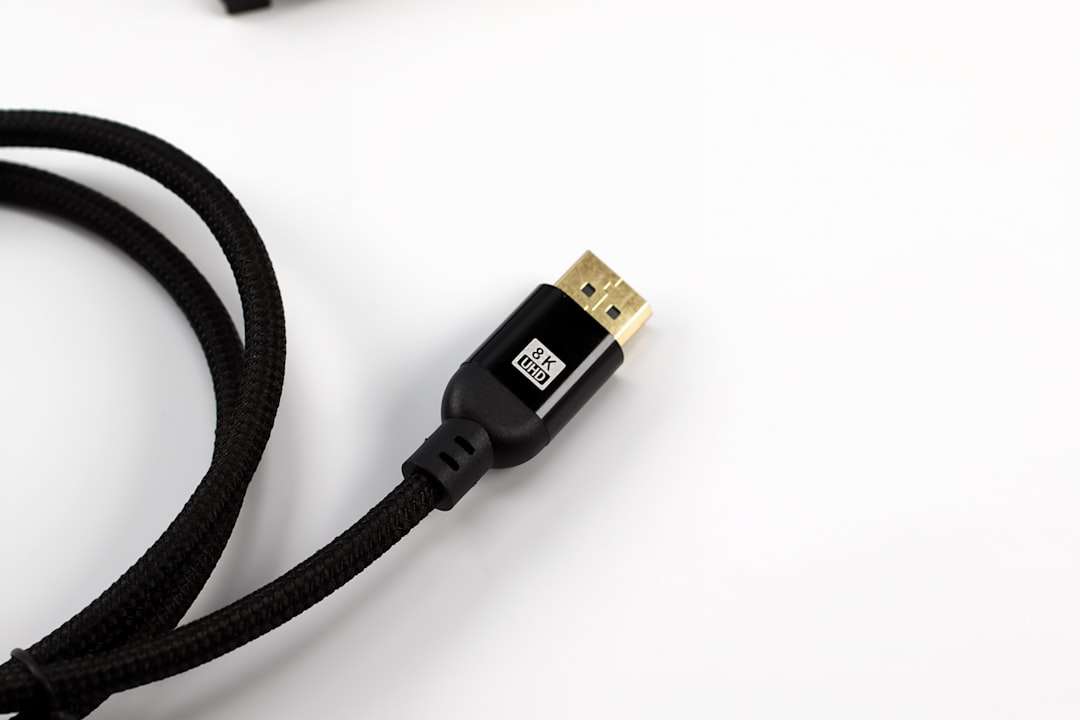
One of the most common and easily overlooked causes of a black screen is a loose or damaged cable. HDMI, DisplayPort, VGA, or DVI cables can become partially disconnected due to movement, pets, or accidental bumps.
Symptoms:
- Monitor powers on but displays “No Signal”
- Screen flickers before going black
- Image briefly returns when cable is moved
Fix:
- Unplug and firmly reconnect both ends of the cable
- Try a different cable
- Test with another monitor or device
Tip: Avoid excessively bending cables, as internal wires can break over time.
2. Power Supply Problems
Sometimes the issue is not the signal but the monitor’s power source. A failing power adapter or unstable power outlet can cause intermittent blackouts.
Symptoms:
- Monitor LED does not turn on
- Monitor briefly flashes, then shuts off
- Burning smell or unusual noise from the adapter
Fix:
- Test the monitor with a different power outlet
- Replace the power cable or adapter
- Check for tripped surge protectors
3. Sleep Mode or Power Saving Settings
Operating systems are designed to save energy by turning off the display after periods of inactivity. Occasionally, a glitch prevents the screen from waking up.
Fix:
- Move the mouse or press a key
- Press the monitor’s power button off and on
- Adjust power settings in system preferences
If the screen remains black but the computer appears to be running, restarting the system may resolve the issue.
4. Graphics Card Issues
The graphics processing unit (GPU) is responsible for sending video signals to the monitor. If it is outdated, overheating, or physically failing, the screen may go black suddenly.
Symptoms:
- Screen black during gaming or heavy usage
- Fans running loudly before shutdown
- Artifacts or distorted visuals before blackout
Fix:
- Update graphics drivers
- Reseat the graphics card (for desktop PCs)
- Check for overheating and clean dust buildup
If problems persist across different monitors, the graphics card may need professional repair or replacement.
5. Outdated or Corrupted Drivers
Drivers act as communication bridges between hardware and the operating system. When display drivers are outdated or corrupted, they can cause screen instability.
Fix:
- Boot into safe mode
- Reinstall or update display drivers
- Use system restore to revert recent changes
Keeping drivers updated reduces the likelihood of recurring black screen problems.
6. Monitor Hardware Failure
Monitors, like all electronic devices, have a lifespan. Internal components such as capacitors and backlights can deteriorate over time.
Signs of monitor failure:
- Faint image visible with flashlight
- Persistent black screen even with different devices
- Buzzing sound from inside the monitor
When to replace: If the monitor is older than 7–10 years and repair costs approach replacement price, buying a new unit may be more economical.
7. Overheating
Overheating affects both monitors and computers. Poor ventilation can cause components to shut down temporarily to prevent damage.
Fix:
- Ensure proper airflow around devices
- Clean vents and fans
- Avoid placing electronics in enclosed spaces
Consistently high temperatures shorten hardware lifespan significantly.
8. It Might Be a Scam
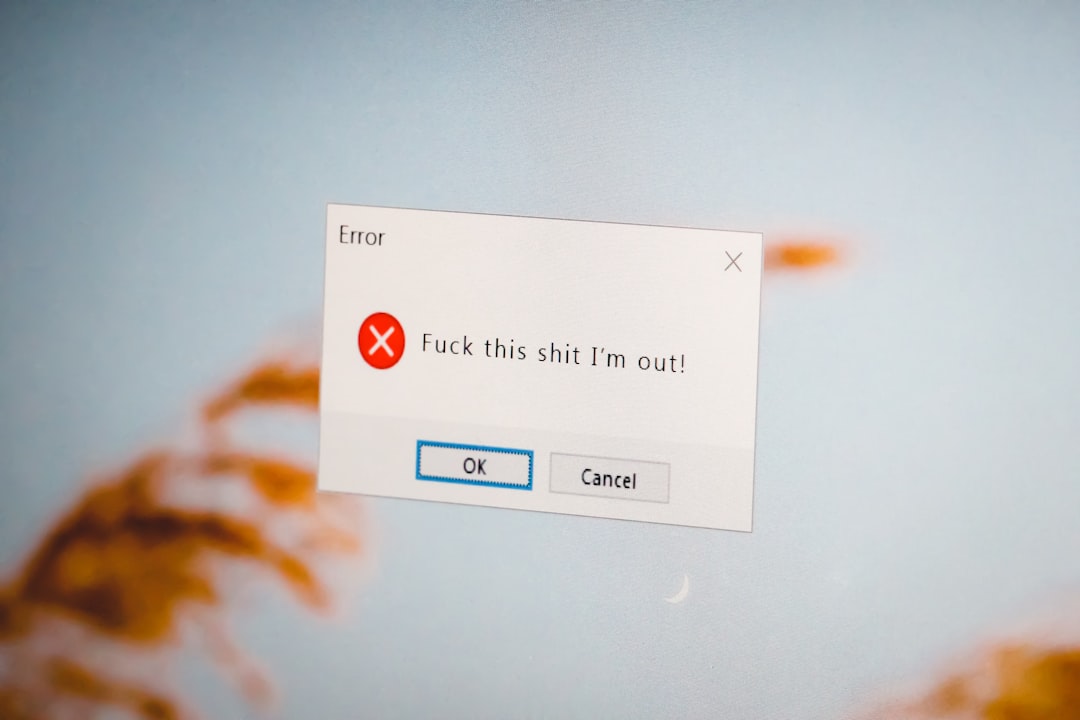
In rare cases, a black screen is not a technical malfunction but part of a social engineering scam. Cybercriminals sometimes display fake “system crash” screens with a phone number claiming to be technical support.
Warning signs of a scam:
- A phone number appears urging immediate contact
- Claims that personal data is at risk
- Requests for remote access or payment
What to do:
- Do not call the number displayed
- Restart the computer
- Run reputable antivirus software
- Report the scam to relevant authorities
Legitimate companies do not display unsolicited warning screens demanding urgent payment or access.
Quick Troubleshooting Comparison Chart
| Cause | Difficulty to Fix | Cost | Professional Help Needed? |
|---|---|---|---|
| Loose Cable | Very Easy | Low | No |
| Power Issue | Easy | Low to Moderate | Rarely |
| Sleep Settings | Very Easy | Free | No |
| Graphics Card | Moderate | Moderate to High | Sometimes |
| Driver Problem | Moderate | Free | No |
| Monitor Failure | Difficult | High | Often |
| Overheating | Easy | Low | Rarely |
| Scam | Easy to Avoid | Potentially High | No (Report Instead) |
When to Seek Professional Help
While many black screen issues are simple to resolve, certain situations require expert attention:
- Repeated blackouts despite cable and driver checks
- Burning smells or visible hardware damage
- Internal component failure
- Business-critical systems with sensitive data
Technicians can perform voltage testing, component diagnostics, and deeper software analysis that general users may not safely conduct.
Preventive Measures
Prevention reduces downtime and costly repairs. Computer owners are encouraged to:
- Keep drivers updated
- Use surge protectors
- Maintain proper ventilation
- Regularly clean hardware
- Install reputable security software
Routine maintenance significantly decreases the risk of unexpected black screen interruptions.
Frequently Asked Questions (FAQ)
1. Why does the monitor go black randomly but the PC stays on?
This typically points to cable issues, graphics driver problems, or GPU overheating rather than complete system failure.
2. How can someone tell if the monitor or graphics card is the problem?
Testing the computer with another monitor helps isolate the issue. If the problem persists, the graphics card may be at fault.
3. Can a virus cause a black screen?
Yes, though it is less common. Malware can interfere with system functions or simulate crash screens as part of a scam.
4. Is it expensive to fix a black screen issue?
Most fixes, such as reconnecting cables or updating drivers, are free. Costs increase if hardware replacement is required.
5. What should someone do if a screen shows a support phone number?
They should avoid calling the number, restart the device, and run antivirus software. It is likely a scam attempt.
6. How long do monitors usually last?
Most monitors last between 7 and 10 years, depending on usage and quality.
7. Can overheating permanently damage a monitor?
Yes. Persistent overheating can degrade internal components and reduce the device’s lifespan.
A monitor screen going black is not always catastrophic. In most cases, the issue is minor and easily corrected. However, staying alert to hardware warning signs and potential scams ensures both digital safety and long-term device reliability.