
Table of Contents
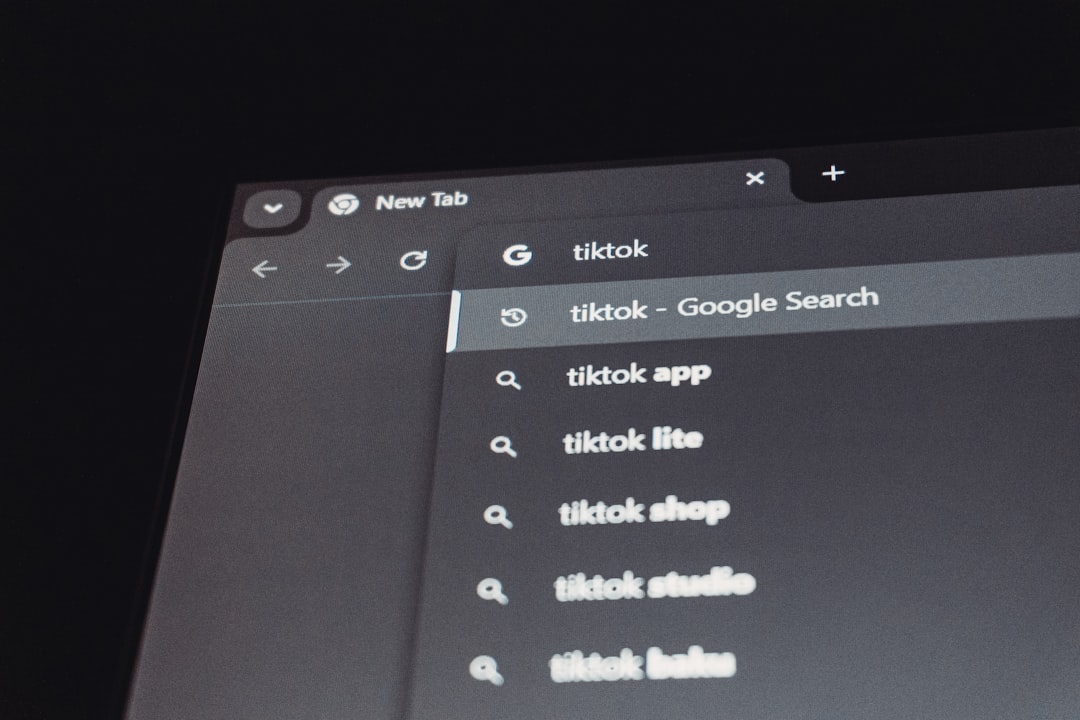
Have you ever opened your browser or device only to notice that your once bright, familiar search bar has suddenly turned dark? Whether you’re using Google, Windows search, macOS Spotlight, or a mobile browser, a dark search bar can be surprising—especially if you didn’t intentionally change any settings. While it often looks sleek and modern, it can sometimes feel unfamiliar, harder to read, or simply not what you prefer.
TLDR: A dark search bar is usually caused by dark mode, browser themes, system settings, accessibility features, or browser extensions. In most cases, it’s easy to fix by adjusting your display settings or disabling specific themes. This guide walks you through six simple solutions to restore your search bar’s normal appearance. You don’t need advanced technical skills—just a few quick checks.
Let’s explore why this happens and how you can fix it quickly and confidently.
Why Did My Search Bar Turn Dark?
Before jumping into solutions, it’s helpful to understand what might be happening behind the scenes. A dark search bar is rarely a “glitch.” More often, it’s triggered by a setting or update such as:
- Dark mode activation on your device or browser
- Automatic system theme syncing
- Browser theme installations
- Extension conflicts
- Accessibility features like high contrast mode
- Recent software updates that changed default display settings
Modern operating systems and browsers are deeply integrated. If your computer switches to dark mode at sunset, your browser and search bar often follow automatically. The same happens on smartphones.
6 Easy Fixes to Restore Normal Appearance
1. Turn Off Dark Mode in System Settings
The most common reason for a dark search bar is that your entire system is set to dark mode.
On Windows:
- Go to Settings.
- Select Personalization.
- Click Colors.
- Change “Choose your mode” to Light.
On macOS:
- Open System Settings.
- Click Appearance.
- Select Light instead of Dark or Auto.
On iPhone or Android:
- Go to Display Settings.
- Switch from Dark to Light Mode.
Once changed, your search bar should instantly revert to its brighter design.
2. Check Browser Theme Settings
Even if your system is in light mode, your browser might have its own separate theme applied. Chrome, Edge, and Firefox all support custom themes.
In Google Chrome:
- Click the three dots in the upper-right corner.
- Select Settings.
- Go to Appearance.
- Click Reset to default or choose a lighter theme.
In Microsoft Edge:
- Open Settings → Appearance.
- Select the Light theme.
In Firefox:
- Open the menu → Add-ons and Themes.
- Choose the default light theme.
If a theme was installed accidentally or during testing, removing it often resolves the issue immediately.
3. Disable Extensions That Modify Appearance
Some browser extensions override colors, apply “night mode,” or adjust website layouts to reduce eye strain. Popular examples include dark mode readers, accessibility enhancers, and custom UI extensions.
To check:
- Open your browser’s Extensions or Add-ons section.
- Temporarily disable recently added extensions.
- Refresh the page to see if the search bar changes.
If the search bar returns to normal, you’ve identified the cause. You can either remove the extension or adjust its settings.
4. Adjust High Contrast or Accessibility Settings
Accessibility settings are incredibly helpful—but sometimes they change colors more drastically than expected.
Check for:
- High Contrast Mode (Windows)
- Increase Contrast (macOS)
- Accessibility display adjustments (iOS/Android)
These features may override normal color themes, forcing search bars and user interfaces into darker or more contrasting tones.
Turning these settings off—or fine-tuning them—can restore the original look without sacrificing visibility.
5. Update or Restart Your Browser
Sometimes, display changes occur after updates that didn’t fully apply. A simple restart or update check can fix unexpected appearance changes.
Steps to try:
- Close and reopen your browser completely.
- Restart your computer or device.
- Check for browser updates in Settings → About.
Updates can introduce new design standards that sync with system settings. Ensuring everything is current prevents compatibility glitches.
6. Clear Cache and Reset Browser Settings
Cached files store visual preferences, scripts, and configurations. Occasionally, corrupted cache data can lead to display issues like a dark search bar appearing unexpectedly.
To clear cache in most browsers:
- Open browser settings.
- Select Privacy and Security.
- Click Clear Browsing Data.
- Choose Cached images and files.
If that doesn’t work, consider a full browser reset. This restores default settings without deleting saved bookmarks (though you may lose customized preferences).
Quick Comparison of Common Causes and Fixes
| Cause | Difficulty to Fix | Time Required | Most Common On |
|---|---|---|---|
| System Dark Mode | Very Easy | 1 minute | Windows, macOS, smartphones |
| Browser Theme | Easy | 2 minutes | Chrome, Edge, Firefox |
| Appearance Extension | Easy | 2–5 minutes | All major browsers |
| High Contrast Mode | Moderate | 3 minutes | Windows users |
| Outdated Browser | Very Easy | 2 minutes | All platforms |
| Corrupted Cache | Moderate | 5 minutes | Older installations |
Is a Dark Search Bar Ever Intentional?
Absolutely. In fact, many users now prefer dark interfaces. Here’s why:
- Reduced eye strain in low-light environments
- Better battery life on OLED screens
- Modern, sleek aesthetic
- Improved focus due to lower glare
Tech companies increasingly default to dark mode as an option—or even as an automatic nighttime setting. If your search bar turned dark at sunset and switches back in the morning, your device likely uses an automatic schedule.
When to Be Concerned
In rare cases, a dark or oddly colored search bar could indicate:
- Display driver issues
- Corrupted system files
- Malicious browser extensions
If your screen shows unusual color distortions beyond just the search bar—or if colors appear inverted unexpectedly—it may be worth running a security scan or updating display drivers.
However, in 95% of cases, the issue is simply a theme setting.
Final Thoughts
Seeing a dark search bar when you’re used to a bright one can feel jarring—but the solution is almost always straightforward. Whether it’s system-wide dark mode, a browser theme, an extension, or accessibility settings, restoring the normal appearance only takes a few clicks.
The key is to work through the possibilities methodically:
- Check system display mode.
- Inspect browser theme settings.
- Disable extensions.
- Review accessibility features.
- Update and restart.
- Clear cache if needed.
Technology today is highly customizable, which means visual changes are often intentional—even if they feel accidental at first. Once you understand how themes and system syncing work, you gain full control over your experience.
And who knows? After trying light mode again, you might even decide the dark search bar wasn’t so bad after all.