
Table of Contents
Android Studio is powerful. But sometimes it acts a little dramatic. One of the most common panic moments? You open your project and the layout is not showing. Just a blank screen. Or maybe raw XML. Annoying, right? Don’t worry. This is a common issue. And yes, it’s usually easy to fix.
TLDR: If your Android Studio layout is not showing, check the Design tab, switch the view mode, and make sure your XML file has no errors. Try syncing Gradle and rebuilding the project. If nothing works, invalidate caches and restart Android Studio. Most issues are caused by simple rendering or configuration problems.
Why Is the Layout Not Showing?
Before fixing anything, let’s understand the problem. Android Studio shows layouts using a Layout Editor. This preview depends on many things. Your XML code. Your theme. The project setup. Even Gradle.
If just one small thing breaks, the preview may disappear.
Common symptoms include:
- Blank preview screen
- Error message in the preview panel
- Only XML code is visible
- “Rendering Problems” warning
- Design tab missing
Let’s fix them step by step.
1. Check If You’re in the Right View
This sounds basic. But it happens a lot.
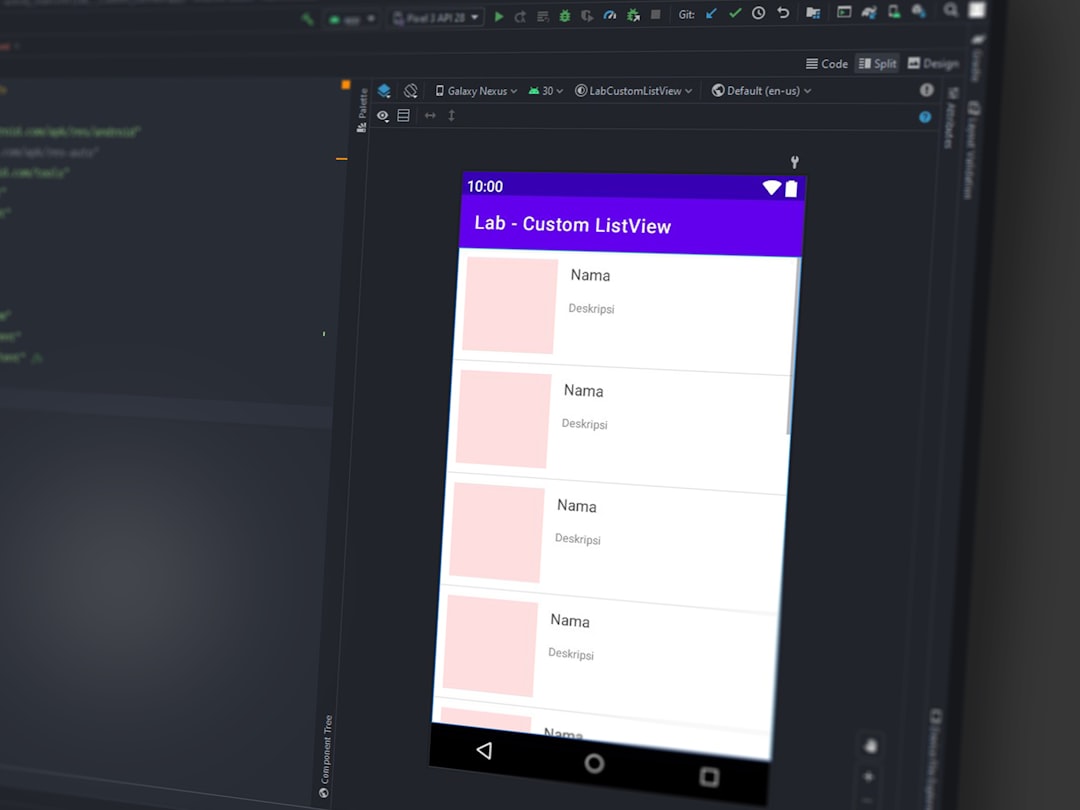
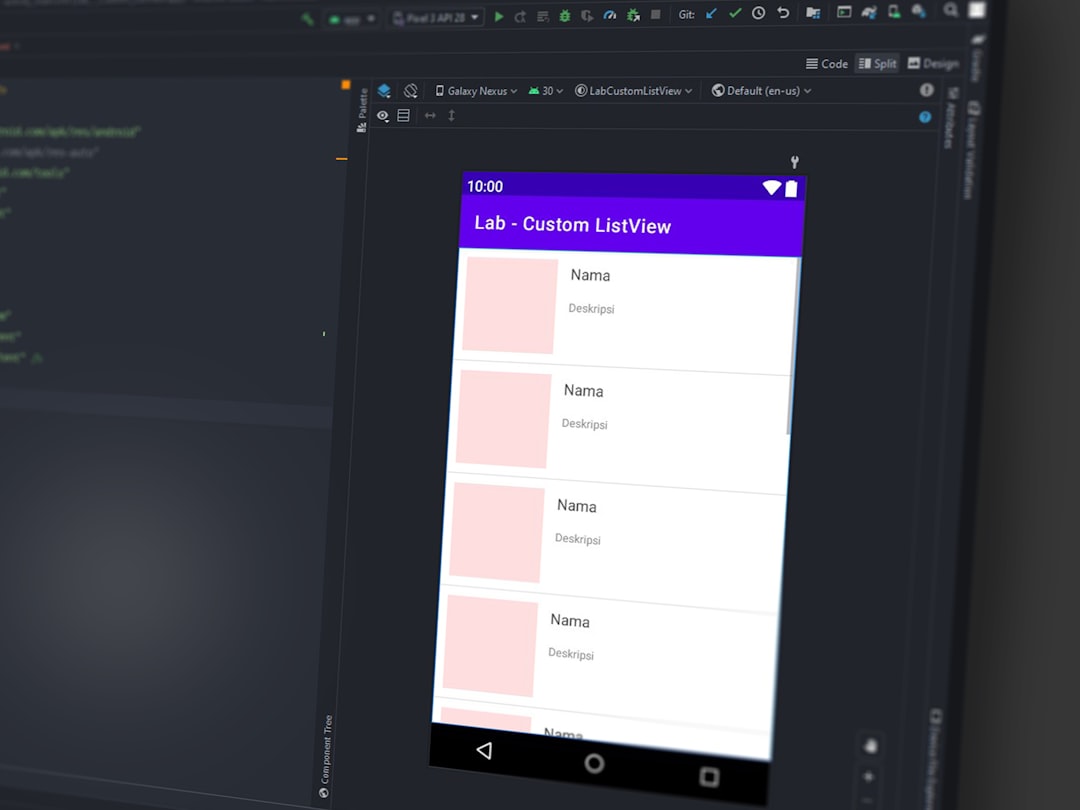
Android Studio has multiple view modes:
- Code
- Split
- Design
If you’re in Code view, you won’t see the layout preview.
Fix:
- Open your XML layout file.
- Look at the top right corner of the editor.
- Click on Design or Split.
Sometimes it’s that simple.
2. Look for XML Errors
If your XML file has errors, the layout preview may fail.
Even a tiny mistake can break rendering.
Common XML issues:
- Missing closing tags
- Wrong namespace
- Invalid attributes
- Typos in resource names
Fix:
- Look for red lines in your XML.
- Check the “Problems” panel.
- Hover over red text to see the error.
- Fix the errors and save.
Preview usually returns instantly after fixing XML.
3. Check the “Rendering Problems” Message
Sometimes the preview panel shows a red warning box.
It may say:
- Failed to load AppCompat theme
- Failed to instantiate view
- Missing styles
This often happens when:
- Gradle is not synced.
- Dependencies are missing.
- The project did not build correctly.
Fix:
- Click File > Sync Project with Gradle Files.
- Wait for the sync to complete.
- If needed, click Build > Rebuild Project.
Then check the preview again.
4. Select the Correct Device for Preview
The layout preview simulates a device.
If no device is selected, nothing may show.
In the preview window:
- Look at the device dropdown.
- Select a phone model (like Pixel).
- Make sure API level is valid.
If your layout uses features not supported by the selected API level, it may not render.
Try switching to a different API version.
Image not found in postmeta5. Check Your Theme
The layout preview needs a valid theme.
If your theme is broken, the layout may not appear.
Open your theme file:
- Go to res > values > themes.xml
- Check for errors
- Make sure it inherits correctly
For example:
Theme.Material3.DayNight.NoActionBar
If you recently changed themes and the layout disappeared, that’s your clue.
Also check the preview theme selector in the layout editor. Sometimes it defaults to the wrong theme.
6. Invalidate Caches and Restart
Sometimes Android Studio just needs a nap.
Caches can become corrupted.
This leads to weird layout issues.
Fix:
- Click File > Invalidate Caches / Restart
- Choose Invalidate and Restart
Wait for Android Studio to restart.
This solves many strange problems.
7. Make Sure You’re Editing a Layout File
This sounds silly. But it happens.
Only files inside:
res > layout
will show in the Layout Editor.
If you open a random XML file, there will be no design preview.
Double-check the file location.
8. Check for Missing Dependencies
If your layout uses special components like:
- ConstraintLayout
- Material components
- Custom views
You must have the correct dependency in your build.gradle file.
Example:
implementation “androidx.constraintlayout:constraintlayout:2.1.4”
If it’s missing, the preview fails.
After adding dependencies:
- Sync Gradle
- Rebuild the project
9. Disable “Experimental” Features
New Android Studio versions sometimes enable experimental rendering features.
These can break previews.
Check:
- File > Settings > Experimental
Disable anything related to layout rendering.
Restart Android Studio.
10. Update Android Studio
Old versions can have bugs.
If nothing works, check for updates:
- Help > Check for Updates
Install the latest stable version.
Preview bugs are often fixed in updates.
11. Clean and Rebuild the Project
This is a classic fix.
Build artifacts sometimes get corrupted.
Do this:
- Click Build > Clean Project
- Then Build > Rebuild Project
Wait for the process to finish.
Open the layout again.
12. Check If You’re Using Jetpack Compose
If you’re working with Jetpack Compose, things are different.
Compose uses a preview annotation:
@Preview
If this is missing, nothing shows.
Example:
@Preview(showBackground = true)
Make sure:
- The composable function has @Preview
- You imported the correct annotation
- The project builds successfully
Compose preview depends heavily on a successful build.
13. Check Your Internet Connection
Sounds strange. But sometimes Android Studio needs internet.
This is especially true during:
- Gradle sync
- Dependency download
- Google Fonts preview
Reconnect and try syncing again.
Bonus: Quick Checklist
If you’re in a hurry, run through this checklist:
- ✅ Switched to Design or Split view
- ✅ Fixed all XML errors
- ✅ Synced Gradle
- ✅ Rebuilt project
- ✅ Selected valid device
- ✅ Checked theme
- ✅ Invalidated caches
One of these usually solves it.
When Nothing Works
If the layout is still not showing:
- Create a new empty project.
- Open its layout.
- See if preview works there.
If it works in the new project, your original project settings may be broken.
You can try:
- Copying XML into a new project
- Resetting IDE settings
- Reinstalling Android Studio (last resort)
Reinstalling should not be the first step. But sometimes it’s the cleanest fix.
Final Thoughts
Android Studio layout not showing can feel scary at first.
But it’s rarely a serious problem.
Most of the time, it’s:
- A wrong view mode
- A tiny XML mistake
- A Gradle sync issue
Stay calm. Check step by step.
Remember, Android Studio is powerful. But it’s also complex. Small things can break the preview.
The good news? Almost every preview problem has a simple fix.
Now go fix that layout. Your app is waiting.